
Draw data table
Creates a table object in the GstarCAD drawing from a data table associated with the objects. The fields to be included as table columns can be selected, allowing flexible configuration of the output. The table may also be formatted by applying row colors according to the layers or entities of the corresponding objects..
Use this command to create tables in the drawing from the data tables. The SPMDATATABLEDRAW command is available from the ribbon on de Data group:

Draw table options
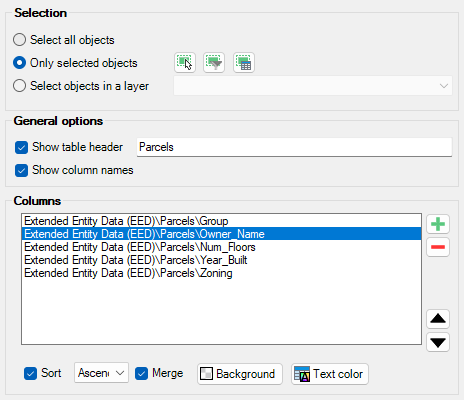
- Selection (review selection control options).
- General options:
- Show table header: Includes a row with table name.
- Show column names: Shows the field names as column headers.
- Columns: This setting defines the target layer name for the labels. You can select an existing layer in the drawing or you can write the name to create a new layer.
- Add or remove fields with + and - buttons, and sort them up and down (columns will move left to right). Also columns from entities properties can be added, like layer or type, and geometric properties like area, length or elevation.
- For each field you can set:
- Sort: the rows will be sorted ascending or descending by the field values.
- Merge: if contiguous rows have the same value for this field, the cells will be merged.
- Background: transparent, by layer, by entities color or use a custom value.
- Text color: default text color, by layer, by entities color or use a custom value.
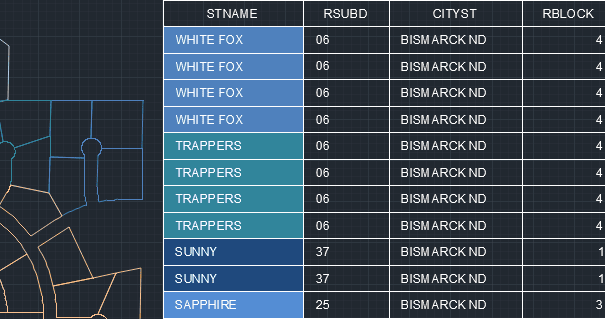
Draw table from data grid
- Open data grid running SPMDATATABLEGRID command.
- Sort and/or select entities, they will be used to create the table. If any is selected, the full table will be inserted.
- Click on the draw table icon on the grid header.
- By default the visible fields are selected, you can remove the unwanted fields.
- Change additional options like grouping and colors.
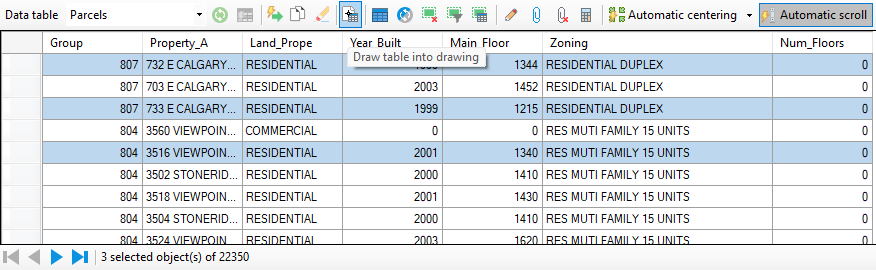
Draw table from main palette
This tool is also available from the Explorer in the main palette. When it is executed from the main palette, the full data table will be inserted.
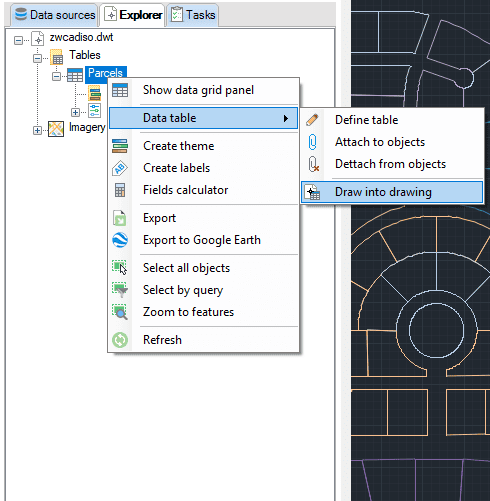
Review this video to see the full process:
Disclaimer:
- Some components shown here (providers, names, window styles, etc.) may differ slightly from those on your computer.
- Certain features require Internet access. If you experience issues, check with your network administrator about a possible Proxy server. You can configure the Proxy settings in the application options.
- Some geographic data providers (Geocode, image maps, etc.) may require a user account, which you can set up in the Service Provider API Keys section of the application options.