
Trim
Enables the use of a closed boundary as a trimming edge to cut intersecting geometries. Users can choose whether to retain the elements inside or outside the boundary, making it a powerful tool for refining drawings, isolating areas of interest, or cleaning up spatial data..
The SPMTRIM command removes portions of entities that fall outside (or inside) boundary polygons, keeping only the desired parts.
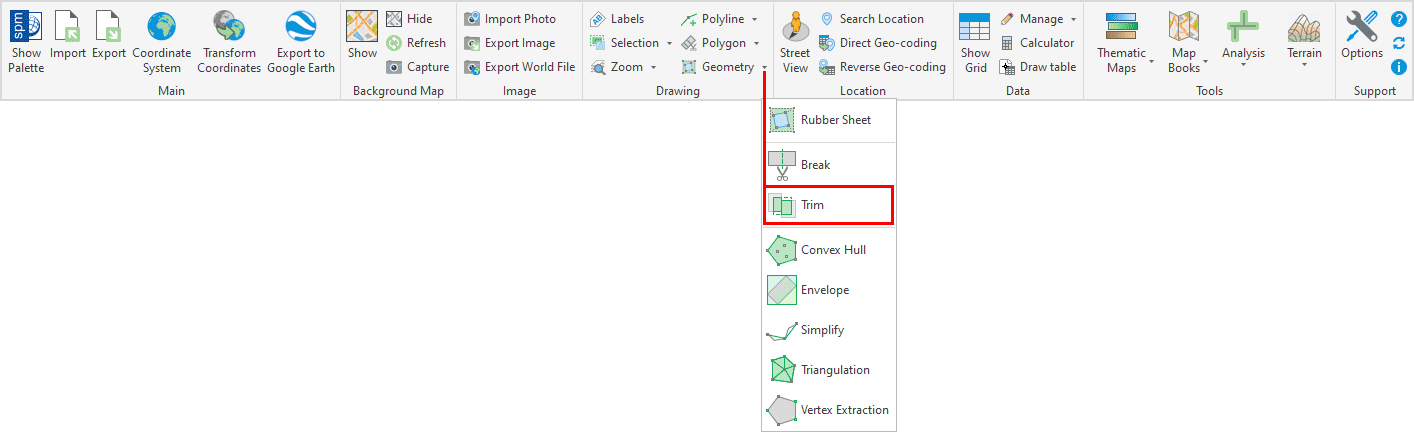
Trim Options
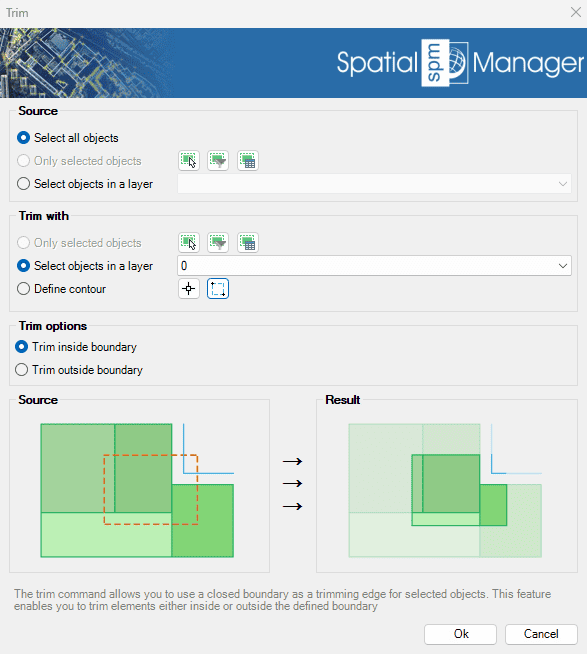
- Source: select the entities to divide (review selection control options).
- Trim with: select the line to trim by, or draw it manually. The trimming lines should form closed polygons to define the areas to keep or remove.
- Trim options
- Trim inside boundary: only the parts of the entities inside the boundary will be kept.
- Trim outside boundary: only the parts of the entities outside the boundary will be kept.
Trim video
Disclaimer:
- Some components shown here (providers, names, window styles, etc.) may differ slightly from those on your computer.
- Certain features require Internet access. If you experience issues, check with your network administrator about a possible Proxy server. You can configure the Proxy settings in the application options.
- Some geographic data providers (Geocode, image maps, etc.) may require a user account, which you can set up in the Service Provider API Keys section of the application options.