
Import spatial data
Imports spatial data, into new or existing GstarCAD drawings, as GstarCAD objects and Extended Entity Data (EED).
Import spatial Features as GstarCAD Entities
Import spatial features as GstarCAD entities into Spatial Manager™ for GstarCAD by using the contextual menu (mouse right-click) on any table or spatial file in the ‘Data sources’ area of the ‘SpatialManager’ palette. This will launch the “Import” wizard of the application. As you will see, you can import the table or the file in the current or a new drawing (see also “How to import directly into the current drawing?” below). In any case, within a work session, the parameters of an import process are kept to be applied by default in the next import.
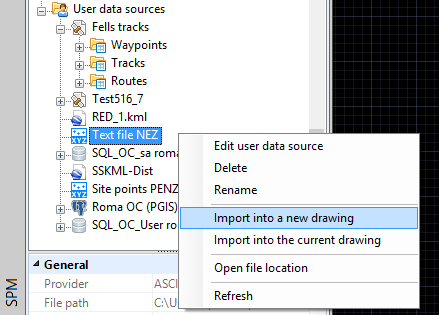
While running the “Import” wizard, you can select the import parameters that match your needs.
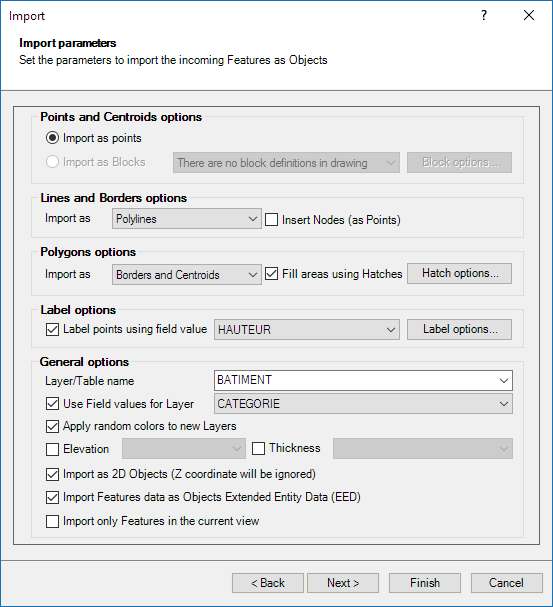
- Points and Centroids options. Here you can define the options for point-type features and for centroids of polygons (if you choose any option to draw centroids in the polygons options). This area will be disabled if the application “knows” there are no points or centroids to draw.
- Import as GstarCAD Points.
- Import as Blocks. This item will be disabled if there are no Block definitions in the drawing.
- Select a Block definition. You can select:
- A Block Name in the drawing, or
- Choose the option “Use Field values for Name…“, allowing you to select the Block definition to use for the point features or centroids depending on the value of a field in the data table. If this value does not match any name among the Block names in the drawing, the application will use GstarCAD Points to import the corresponding point features or centroids. If you choose this option, the “Block options” window (see next paragraph) will be automatically opened, allowing you to select the field for the Block names.
- Block options. Here you can choose the field for the Block names (see the previous paragraph), the correspondence between fields (if any in the data source) and Block attributes (if any in the Block definition), the option to use or not LUPREC for decimal places (see Notes below), and the Block insertion parameters such as the rotation and the scales, from values of fields in the data source. This item will be disabled if there are no attributes in the Block definition and there are no numeric fields in the data source.
- Notes:
- When inserting, the rotation of the Block references will consider the positive angles direction defined according to the value of the system variable ANGDIR.
- You can choose whether the value of the LUPREC variable (Length precision) is used for the number of decimal places when writing attributes to a numerical field. This option also affects numeric field labels and can also be changed there (see Label options below).
- Notes:
- Select a Block definition. You can select:
- Lines and Borders options. Here you can define the options for linear-type features and for borders of polygons (if you choose any option to draw borders in the polygons options). This area will be disabled if the application “knows” there are no lines or borders to draw.
- Import as GstarCAD Polylines, Polylines 2D or Polylines 3D.
- Insert Nodes (of Polylines) as GstarCAD Points.
- Polygons options. Here you can define the options for polygonal-type features. This area will be disabled if the application “knows” there are no polygons to draw.
- Import Borders, Borders and Centroids, Centroids only, Polygons or Polygons and Centroids.
- Fill areas using Hatches. This item will be disabled if you have chosen the option to import as “Only Centroids”.
- Hatch options. Here you can define options such as pattern, angle, scale, transparency (if supported) and whether the hatch is associative. Some parameters can be taken from fields in the data source.
- Label options
- Label entities using field value. You can select any field to create text entities in GstarCAD in order to label the incoming entities by reading the text strings from this field. Each text entity will go to the same layer as the labeled entity. Polygon labels will be placed at the polygon centroid position and polylines will be labeled using a “smart” scheme.
- Label options. You can define style, height, justification, rotation, rotation units and other parameters. Some can be taken from fields. For linear entities you can set repeated label spacing or choose a single label. You can set whether to use LUPREC for decimal places and whether to insert only the label (no geometry). Mask labels will generate wipeouts.
- Notes:
- Rotation respects ANGDIR.
- LUPREC affects numeric labels (and Block attribute numeric formatting above).
- Extended Entity Data (EED) is not attached to labels.
- The SPMLABEL command is also available for labeling existing entities.
- Notes:
- Label options. You can define style, height, justification, rotation, rotation units and other parameters. Some can be taken from fields. For linear entities you can set repeated label spacing or choose a single label. You can set whether to use LUPREC for decimal places and whether to insert only the label (no geometry). Mask labels will generate wipeouts.
- Label entities using field value. You can select any field to create text entities in GstarCAD in order to label the incoming entities by reading the text strings from this field. Each text entity will go to the same layer as the labeled entity. Polygon labels will be placed at the polygon centroid position and polylines will be labeled using a “smart” scheme.
- General options
- Layer/Table name. Defines the target layer name for the imported entities. If left blank, uses the current layer. This is also the name of the data table if importing feature data.
- Use Field values for Layer. Defines layers dynamically from a field value.
- Apply random colors to new Layers.
- Use Field values for Entity Elevation and/or Thickness.
- Import as 2D Entities (Z coordinate ignored).
- Import Features data as Entities Extended Entity Data (EED) (“Standard” and “Professional” editions only).
- Notes:
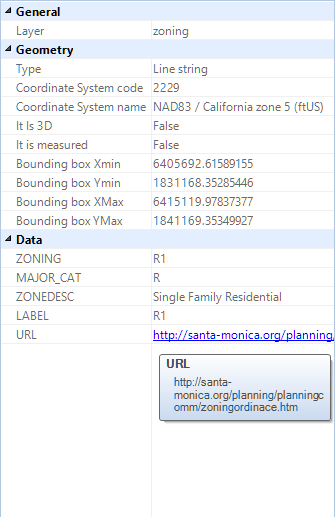
- Fields starting with “http” become active links.
- Disabled if importing labels only.
- Notes:
- Import only Features in the current view.
- Notes:
- Entire bounding box must be outside the view to be excluded.
- Disabled when importing into a new drawing.
- Notes:
Importing raster images or photos: Although the general import functions allow importing raster files in addition to vector files, the SPMIMPORTPHOTO command is more straightforward for importing geo-referenced raster images.
Import directly into the current drawing
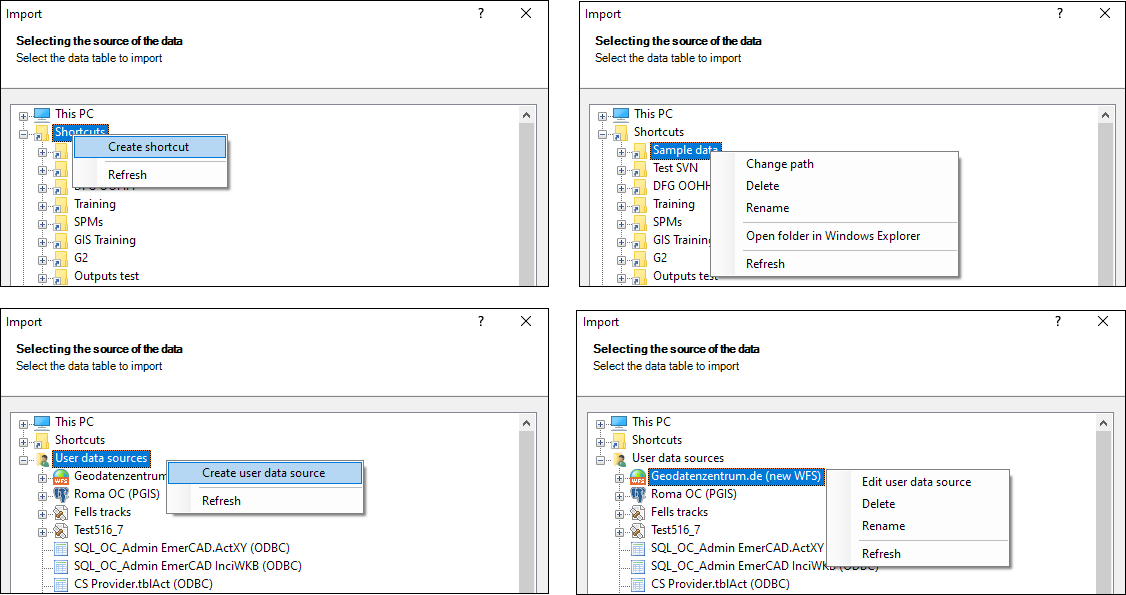
The SPMIMPORT command of Spatial Manager™ for GstarCAD allows you to import features directly into the current drawing without opening the palette. The displayed window is similar to the palette’s Data Sources section, and once the import source is selected, the wizard proceeds with the same steps and parameters described above.
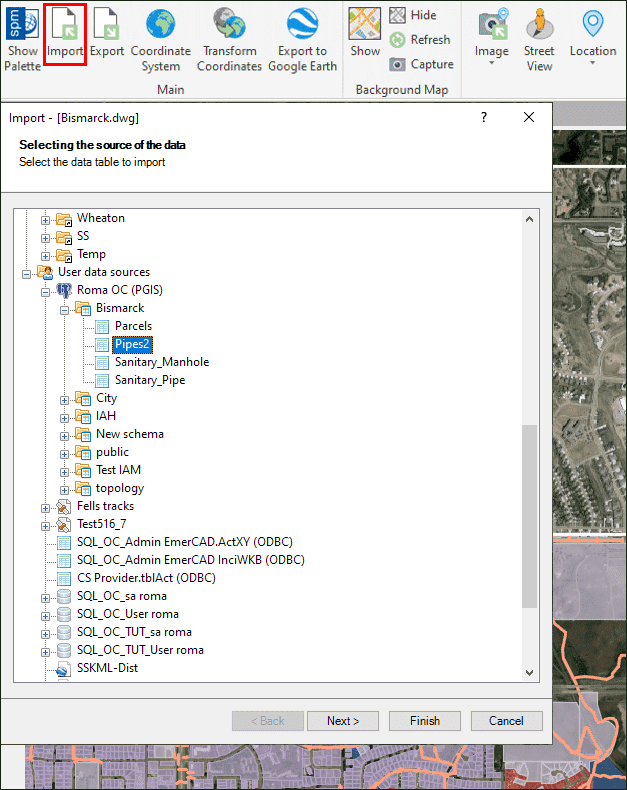
Although the application’s main palette is the primary tool to manage resources, shortcuts and UDSs, the context menus in this direct import window also allow executing many of these functions on the fly.
Disclaimer:
- Some components shown here (providers, names, window styles, etc.) may differ slightly from those on your computer.
- Certain features require Internet access. If you experience issues, check with your network administrator about a possible Proxy server. You can configure the Proxy settings in the application options.
- Some geographic data providers (Geocode, image maps, etc.) may require a user account, which you can set up in the Service Provider API Keys section of the application options.