
Tasks
Save Tasks in GstarCAD to replay import processes (including all process parameters) so many times as desired.
What are the Tasks
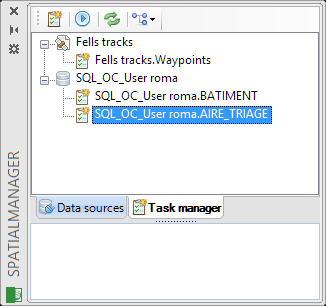
The Tasks in Spatial Manager™ for GstarCAD are the way you can save any import process and its parameters, allowing you to run, whenever you want, repetitive processes for importing data tables into GstarCAD. You can access Tasks through the “Task manager” area in the SpatialManager palette.
Importing tables from files, servers or data stores in GstarCAD may be executed regularly, and sometimes these processes require several complex parameters: source definitions, import settings, coordinate transformations, etc.
Spatial Manager™ for GstarCAD introduces the concept of Task, which stores all necessary operations and parameters for any spatial-information import process. Once saved, you can run the Task from the Task Manager whenever needed.
Note: Within a work session, the parameters of any Import process are kept to be applied by default in the next Import.
Create a new Task
You can create new Tasks in Spatial Manager™ for GstarCAD using the “New task” button in the Task Manager.
You may also create a Task while defining an import process, since you will run the same wizard. Both methods let you run the import process immediately and/or save it as a Task at the end of the wizard.
As when defining import processes, you must specify:
- Source data table access parameters
- Import process parameters
- Coordinate system transformation parameters (if required)
- Task name
- Optional description
All this information is stored as a new Task until you delete it.
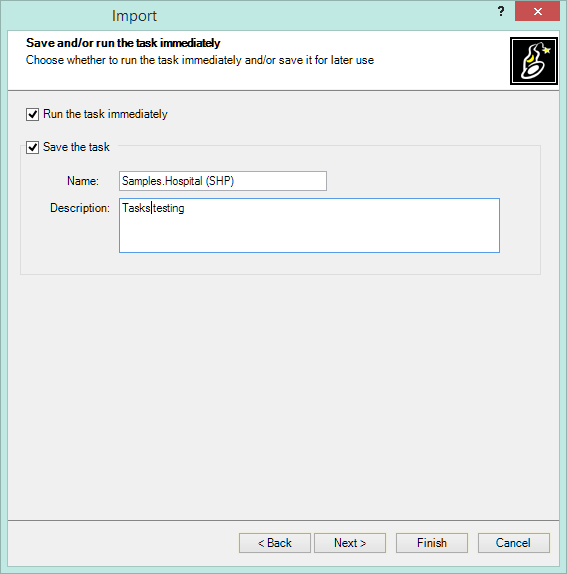
Note: If you enable “Import only Features in the current view”, this condition will also be saved into the Task and may produce unexpected results if the drawing view is different when you later execute the Task.
Execute one or more Tasks
You can select one or multiple Tasks in the Task Manager using CTRL and/or SHIFT.
To execute them, right-click any selected Task and choose “Execute”, or use the “Execute” button.
All selected Tasks will run sequentially, importing their corresponding entities into the current drawing.

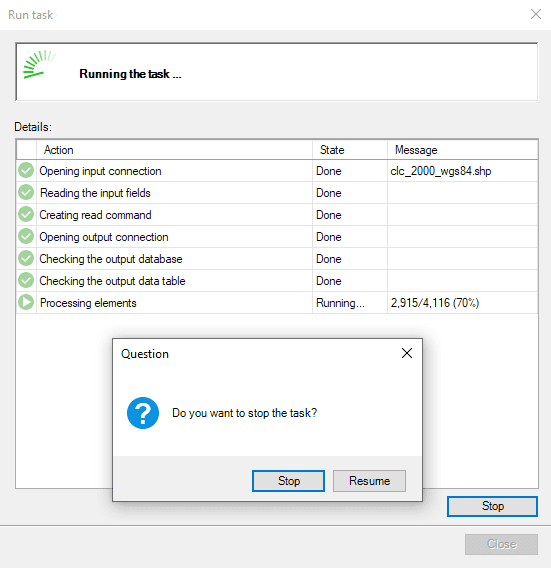
While Tasks are running, you will see a progress window listing all performed actions. You may cancel the process at any time.
Review the Properties of a Task
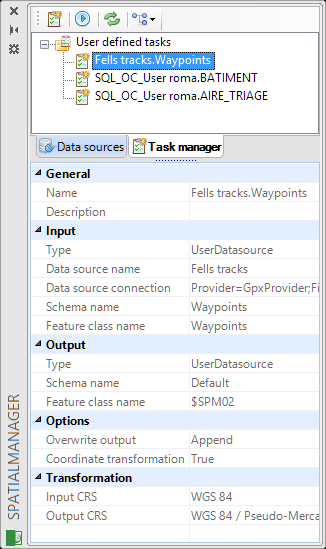
You can review the Properties of a selected Task (only one at a time) in the “Properties” area of the Spatial Manager™ for GstarCAD palette.
Sort the Tasks in the “Task manager”
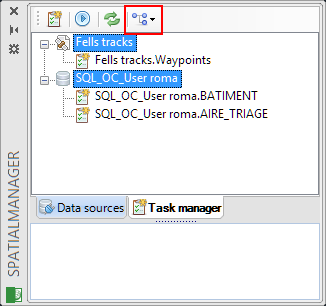
You cannot manually rearrange Tasks in the list, but Spatial Manager™ for GstarCAD allows you to sort them using the “Sort” button:
- Group by source – Tasks are grouped by their referenced data source
- Plain list – All Tasks displayed together and sorted by creation date
Other functions for the Tasks
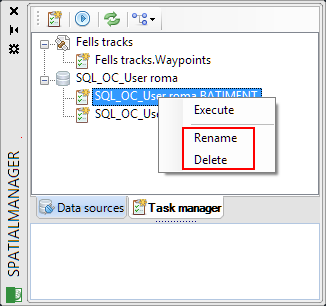
You can Delete or Rename a Task using the right-click menu on a single Task entry.
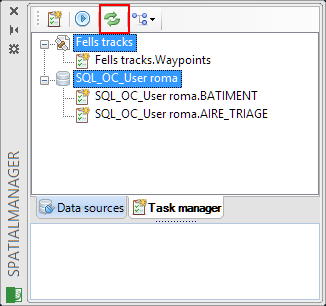
You can also Refresh the Task list using the “Refresh” button, useful when the data sources change during the current work session.
Disclaimer:
- Some components shown here (providers, names, window styles, etc.) may differ slightly from those on your computer.
- Certain features require Internet access. If you experience issues, check with your network administrator about a possible Proxy server. You can configure the Proxy settings in the application options.
- Some geographic data providers (Geocode, image maps, etc.) may require a user account, which you can set up in the Service Provider API Keys section of the application options.