
Reverse geocoding
Obtain postal addresses from objects in the drawing
Get data like street, municipality, postal code, etc. and add it to existing objects.
Get the postal addresses of entities in the drawing
Spatial Manager™ for GstarCAD includes the SPMGEOCODING_REVERSE command that allows you to obtain the postal addresses of the selected entities through a Geocode provider (Google, Bing, OpenStreetMap). All that you need is to select the entities in your drawing to be geocoded, choose the provider to geocode from the list, and, optionally, choose the result types (which depend on the results returned by each provider).

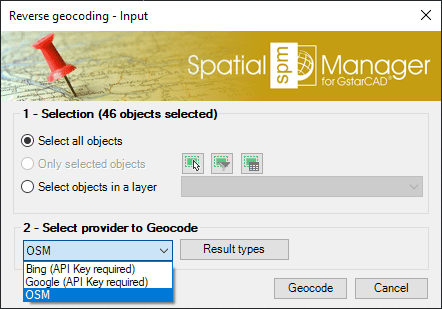
- Selection options (review selection control options).
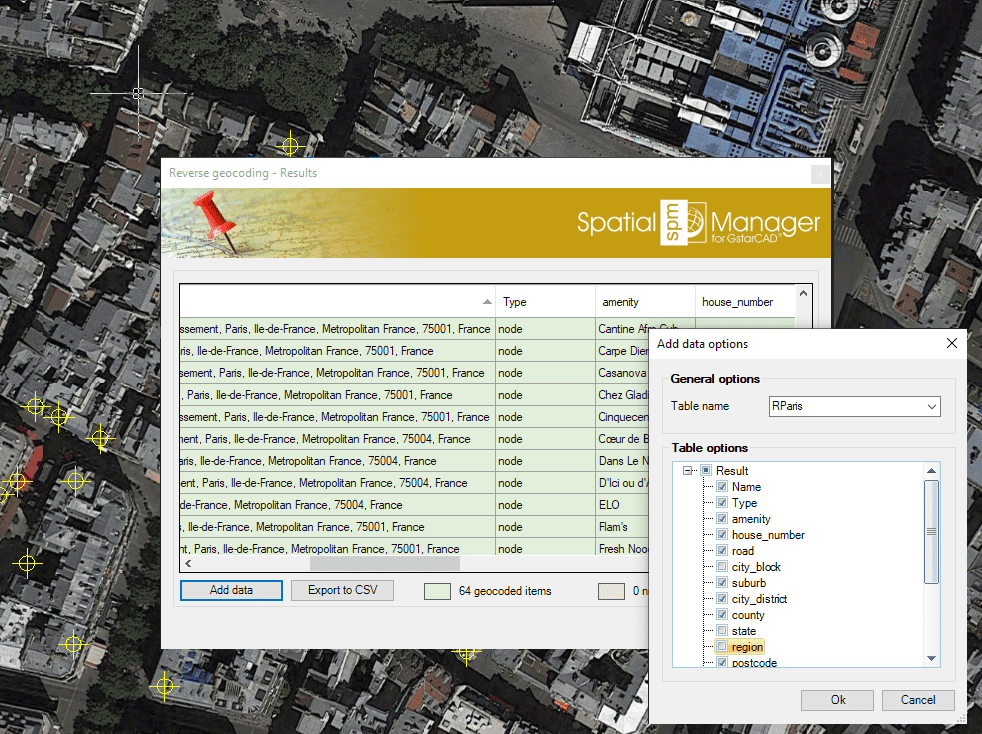
Once the reverse geocoding process is finished, you will get a results table including all the fields returned by the chosen geocoding service. Those addresses that could not be geocoded (may be due to insufficient or inconclusive data) are shown in a different color. From the results of the table, you can:
- Add data: Enter the name of the attached table for the geocoded entities, and select the fields that will be included in this table from the result data. The selected table can be a new table or, if all geocoded entities are already attached to the same existing table, this table can be chosen, which is a good way to add the geocoding data to other existing entity data.
- Export the table to a CSV file: Select the exporting to CSV parameters (delimiter, separator, etc.). You can also opt to omit in the exported CSV the addresses that have not been geocoded.
- Notes:
- Certain geocoding providers (such as Google or Bing) may require special terms of use for the users of this service. You can configure any special setting for such providers through the “Service Provider API Keys” in the application Options (“SPMOPTIONS”).
- If you select a large number of entities to geocode, the application will warn you that this operation may involve high data consumption depending on the geocoding provider chosen.
- If you select non-point entities to geocode (such as polygons, polylines, etc.) the results may be inaccurate depending on the shapes of these entities. For example, for polygonal entities (such as parcels, zones, etc.) the centroid of the entities will be chosen to calculate their postal address, which may be inaccurate if the shape of these polygons causes the centroid to be outside the polygon or away from the appropriate postal address.
- If the drawing is not empty when ‘SPMGEOCODING_REVERSE’ is executed, it is necessary that the drawing has been assigned a Coordinate Reference System (CRS), learn how to georeference a drawing.
- If the drawing is empty and has no coordinate system assigned to it, when SPMGEOCODING_REVERSE is executed Spatial Manager™ for GstarCAD will assign the CRS Code:3857 (WGS84 / Pseudo-Mercator) to the drawing. This CRS is valid for any Earth area, but may be inaccurate for measurements in some areas.
Disclaimer:
- Some components shown here (providers, names, window styles, etc.) may differ slightly from those on your computer.
- Certain features require Internet access. If you experience issues, check with your network administrator about a possible Proxy server. You can configure the Proxy settings in the application options.
- Some geographic data providers (Geocode, image maps, etc.) may require a user account, which you can set up in the Service Provider API Keys section of the application options.