
Legends
Insert a thematic map legend directly into the drawing, making it easier to interpret and communicate the meaning of the applied styles. The legend reflects the categories or value ranges used in the map presentation.
Thematic Map Legend
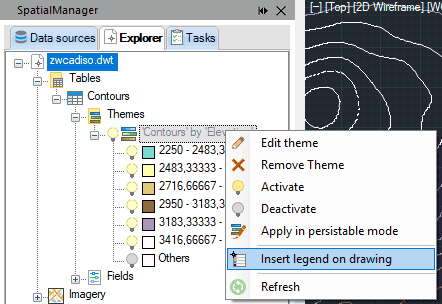
Once a thematic map is created, a legend can be inserted in the drawing from the Explorer context menu.
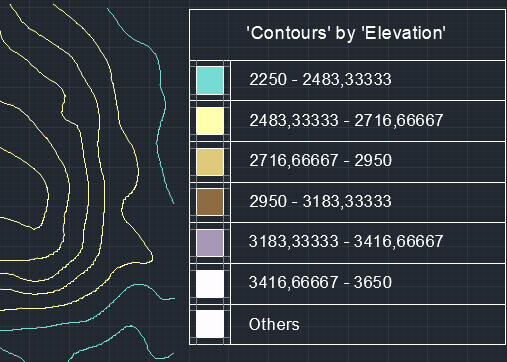
The legend will be inserted in the drawing as a GstarCAD table and will display the styles of the thematic map.
Follow the steps below to insert a legend:
- If you have not still created a thematic map, create one with the SPMTHEMATICMAP command.
- Select the thematic map in the Explorer.
- Right-click on the thematic map and select “Insert legend on drawing” from the context menu (see image below).
- Click on the insertion point and scale the table for setting the legend size.
- The legend will be inserted in the drawing as a GstarCAD table and will display the styles of the thematic map (see image below).
Review this video to see the full process:
Disclaimer:
- Some components shown here (providers, names, window styles, etc.) may differ slightly from those on your computer.
- Certain features require Internet access. If you experience issues, check with your network administrator about a possible Proxy server. You can configure the Proxy settings in the application options.
- Some geographic data providers (Geocode, image maps, etc.) may require a user account, which you can set up in the Service Provider API Keys section of the application options.