
Deactivate
Deactivate or transfer a license.
CAUTION: You must run the application as administrator to perform any task related to activation, deactivation or transfer of licenses.
You can deactivate or transfer a license of Spatial Manager™ for GstarCAD by using the “Deactivate or transfer license” function, which can be found in the “License” section of the application options.
When you deactivate a license of Spatial Manager™ for GstarCAD on a computer, you can reactivate it on this computer or on another computer by entering the last serial number of the license; this number is shown when the deactivation process ends.
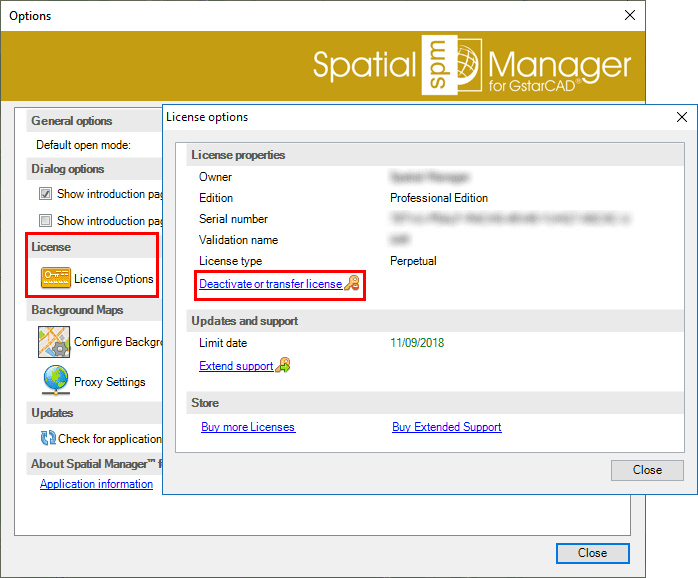
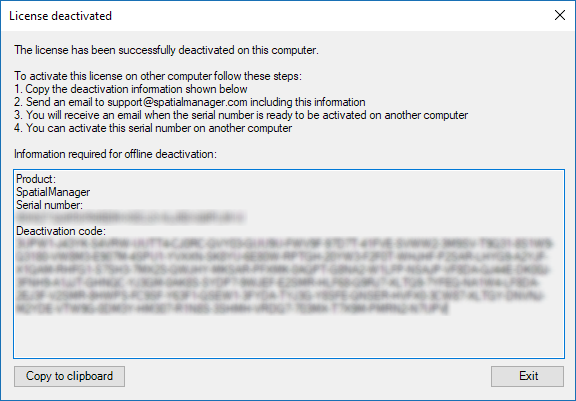
Under some uncommon circumstances (no Internet connection, License Server stopped, etc.), it may not be possible to complete successfully the automatic deactivation of a license. If this happens, the license will be deactivated on your computer and you will get a warning window including the “Deactivation code” and the steps needed to re-activate it manually.
Please feel free to consult us with any questions or issues you may have with the purchasing, installation, activation, deactivation or transfer processes (support@spatialmanager.com).
Disclaimer:
- Some components shown here (providers, names, window styles, etc.) may differ slightly from those on your computer.
- Certain features require Internet access. If you experience issues, check with your network administrator about a possible Proxy server. You can configure the Proxy settings in the application options.
- Some geographic data providers (Geocode, image maps, etc.) may require a user account, which you can set up in the Service Provider API Keys section of the application options.